 IRC Snippets
MDX Control Panel tutorial
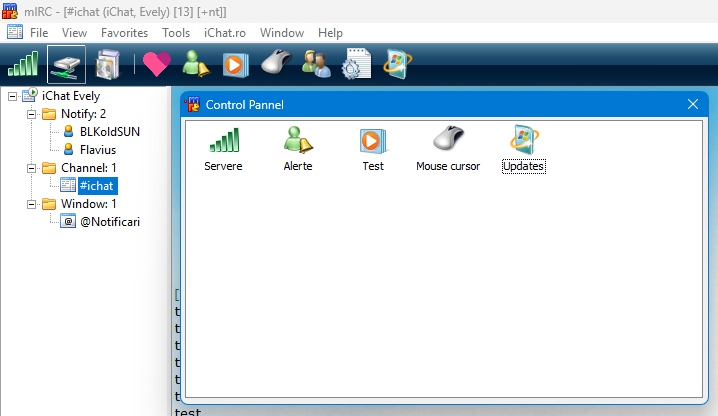
MDX Tutorial that helps you to build a custom control panel in mIRC using mdx controls. This tutorial is a basic example of how you can load the dll and to add custom icons in a ListView.
| Postat de | Copyright | Categorie | Review user | Vizualizari | Data |
|---|---|---|---|---|---|
| BLKoldSUN | BLKoldSUN | mdx | Cod testat | 364 | 2026-02-22 15:43:36 |
;; First make sure that you have your dll placed in the folder
;; This represents the path for you DLL folder (mirc-folder/dcx/mdx.dll)
alias mdx_fullpath { return $+(", $+mircdirdcx\mdx.dll,") }
alias mdx { dll $mdx_fullpath $1- }

alias mdxinit {
  dll $mdx_fullpath SetMircVersion $version
  dll $mdx_fullpath MarkDialog $dname
}

;; This is the dialog window that will have all the list and icons
dialog mdxctrlpannel {
  size -1 -1 527 287
  title "Control Pannel"
  ;; This is the main list for control panel where we will place the icons
  list 1,4 3 518 278,extsel size
}

;; MDX initialisation
on *:dialog:mdxctrlpannel:init:*:{
  mdxinit
  ;; This is our list. MDX puts it as a ListView because we can opt to have custom properties.
  ;; Because its a control panel, we will have the icon option, not report (list with columns)
  mdx SetControlMDX $dname 1 ListView icon rowselect single grid > C:\Users\andre\OneDrive\Desktop\mIRC-779\iChat\dcx\views.mdx
  ;; This is the basic but we dont need it (the width dimension for the column header text)
  did -i $dname 1 1 headerdims 300
  ;; This is the column header
  did -i $dname 1 1 headertext ControlPanel
  ;; Here we set the icon size: small
  did -i $dname 1 1 iconsize normal small
  ;; Here we attach the icon list. You have to put the icons in order, so the first icon will be attached to 1st text
  ;; as here: alarm-ichat.ico -> Servere
  ;; as here: audio-ichat.ico -> Alerte, etc
  did -i $dname 1 1 seticon normal 0, $+ img\alarm-ichat.ico
  did -i $dname 1 1 seticon normal 0, $+ img\audio-ichat.ico
  did -i $dname 1 1 seticon normal 0, $+ img\connect2.ico
  did -i $dname 1 1 seticon normal 0, $+ img\connect-ichat.ico
  did -i $dname 1 1 seticon normal 0, $+ img\mouse-ichat.ico
  did -i $dname 1 1 seticon normal 0, $+ img\notify-ichat.ico
  did -i $dname 1 1 seticon normal 0, $+ img\tools-ichat.ico
  did -i $dname 1 1 seticon normal 0, $+ img\update-ichat.ico
  ;; Here we place the text for each coresponding icon as i mention earlyer
  did -a $dname 1 0 3 Servere
  did -a $dname 1 0 1 Alerte
  did -a $dname 1 0 2 Test
  did -a $dname 1 0 5 Mouse cursor
  did -a $dname 1 0 8 Updates
}

on *:dialog:mdxctrlpannel:sclick:*:{
  ;; if the single click of the mouse is made in $dname 1 (click in our list)
  if $did == 1 {
    ;; and if the click item is 1 then display a message
    if $did($dname,1,1).sel == 2 {
      echo -a You clicked First icon
    }
    if $did($dname,1,2).sel == 3 {
      echo -a You clicked Second icon

    }
    if $did($dname,1,1).sel == 4 {
      echo -a You clicked Third icon
    }
  }
}