 IRC Snippets
MDX Dialog tutorial
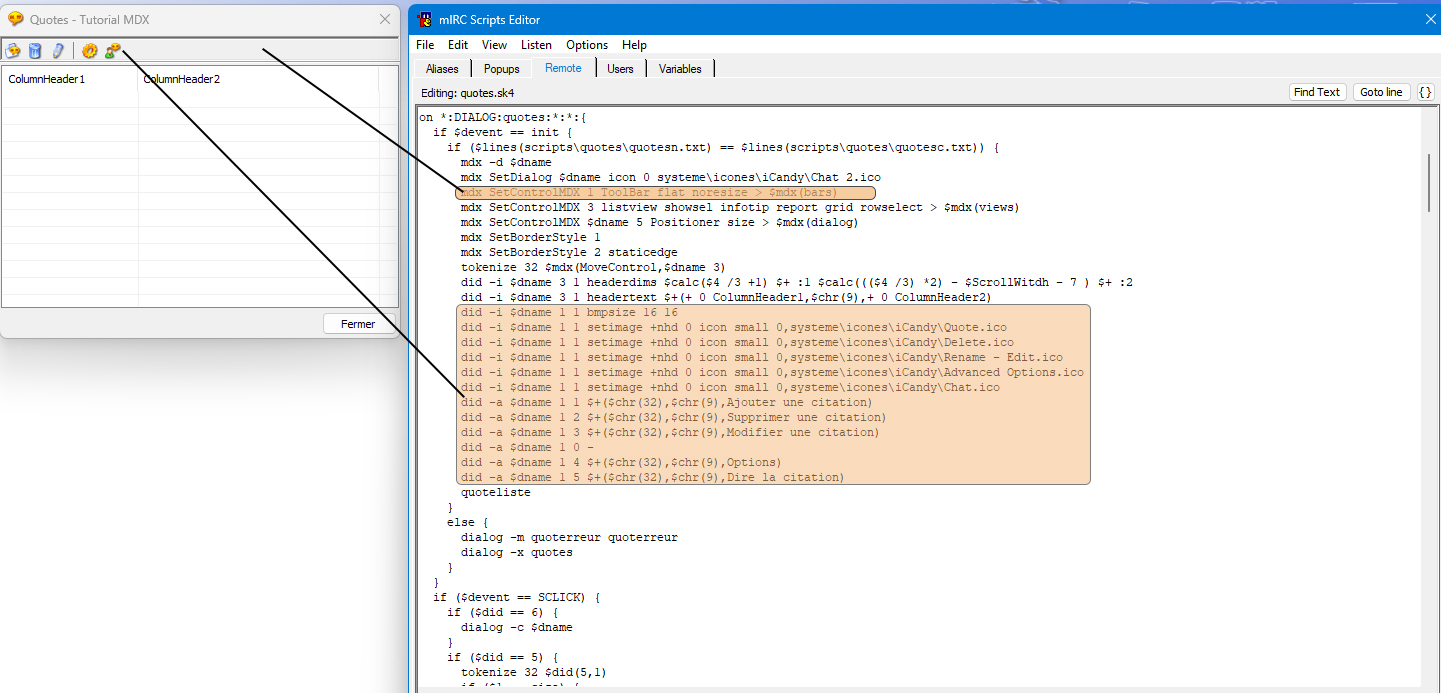
Tutorial MDX - Learn to create a mirc dialog and place some icons with text. The tutorial shows different aproaches for other items aswell. (ListView, Toolbar, etc). Please note that in this tutorial i didnt placed the other dialogs for adding/editing items from the ListView.
| Postat de | Copyright | Categorie | Review user | Vizualizari | Data |
|---|---|---|---|---|---|
| BLKoldSUN | BLKoldSUN | mdx | Cod testat | 346 | 2026-02-22 14:56:51 |
; First, we need to call the MDX dlls (Version MDX: 0.92beta)
; -
; Documentation:
; /mdx [-sd] [paramÄtres]
; Execute the mdx command
; -s = display the results in the active window
; -d = send the commands MarkDialog and SetMircVersion for the desired dialog
;
; $mdx(,[parameter])
; -
alias mdx {
; This is the place where you have to place the dll files (ex: mirc-folder/systeme/dlls/mdx/)
var %mdx = systeme\dlls\mdx\, %mdxdll = $+(",%mdx,mdx.dll,")
if $isid {
var %plugins = dialog ctl_gen bars views
if $istok(%plugins,$1,32) { return $+(%mdx,$upper($1),.MDX) }
else { return $eval($dll(%mdxdll,$1,$2-),2) }
return 1
}
if (-* iswm $1) { var %opt = $1 | tokenize 32 $2- }
if (d isin %opt) && ($dialog($1) != $null) {
var %return = $dll(%mdxdll,SetMircVersion,$version)
if (s isin %opt) { echo -a Mdx: %return }
var %return = $dll(%mdxdll,MarkDialog,$1)
if (s isin %opt) { echo -a Mdx: %return }
return 1
}
var %return = $eval($dll(%mdxdll,$1,$2-),2)
if (s isin %opt) { echo -a Mdx: %return }
return 0
}
;// the entry function to create a normal mIRC dialog
;; This is the alias that call the dialog to open
alias sk_quotes { dialog -m quotes quotes }
;; This is the main dialog interface with buttons, lists, menus and other options in it
dialog quotes {
title "Quotes - Tutorial MDX"
size -1 -1 400 303
option pixels
;; This is a listbox
list 1, 0 1 400 25, size
list 3, 1 30 398 244, size
;; This is a button
button "", 4, 0 0 0 0, cancel
;; This is a text item
text "", 2, 0 26 401 2
button "", 5, 0 0 0 0
;; This is the close button
button "Close", 6, 322 277 75 23
}
;; This will return the width of the monitor
alias ScrollWitdh {
return $calc($regread(HKEY_CURRENT_USER\Control Panel\Desktop\WindowMetrics\\ScrollWidth) / -15)
}
;; This will initialise the opening of the dialog and will initialise the MDX
on *:DIALOG:quotes:*:*:{
if $devent == init {
;; We check if the text file has all the lines to be equal
;; What we have in ColumnHeader1 must be equal to ColumnHEader2 (Title - Quote definition)
if ($lines(scripts\quotes\quotesn.txt) == $lines(scripts\quotes\quotesc.txt)) {
mdx -d $dname
;; This is the icon for the titlebar of the dialog
mdx SetDialog $dname icon 0 systeme\icones\iCandy\Chat 2.ico
;; Here we have a toolbar where we will place the buttons with icons.
;; Each toolbar has its own properties (flat, noresize, etc)
mdx SetControlMDX 1 ToolBar flat noresize > $mdx(bars)
;; This is the main list for the quotes list where we will place the both text files
;; and as you can see, this listview has also properties to use (showsel, infotip, report, grid, etc)
;; These properties determines the aspect of the list
mdx SetControlMDX 3 listview showsel infotip report grid rowselect > $mdx(views)
mdx SetControlMDX $dname 5 Positioner size > $mdx(dialog)
mdx SetBorderStyle 1
mdx SetBorderStyle 2 staticedge
tokenize 32 $mdx(MoveControl,$dname 3)
did -i $dname 3 1 headerdims $calc($4 /3 +1) $+ :1 $calc((($4 /3) *2) - $ScrollWitdh - 7 ) $+ :2
;; This is the text for the Columns, and we placed 2 columns. Between the two titles, we placed a "|" sign (separator $chr(9))
did -i $dname 3 1 headertext $+(+ 0 ColumnHeader1,$chr(9),+ 0 ColumnHeader2)
;; Here we set the size for the icons
did -i $dname 1 1 bmpsize 16 16
;; Here we load the icons
;; 1 - 1 = Represents the item 1 toolbar, so we will place in toolbar
;; If we had another toolbar, we will have used 2 1.
did -i $dname 1 1 setimage +nhd 0 icon small 0,systeme\icones\iCandy\Quote.ico
did -i $dname 1 1 setimage +nhd 0 icon small 0,systeme\icones\iCandy\Delete.ico
did -i $dname 1 1 setimage +nhd 0 icon small 0,systeme\icones\iCandy\Rename - Edit.ico
did -i $dname 1 1 setimage +nhd 0 icon small 0,systeme\icones\iCandy\Advanced Options.ico
did -i $dname 1 1 setimage +nhd 0 icon small 0,systeme\icones\iCandy\Chat.ico
;; Here we place the texts and the tooltips. In this example, we placed just the icons without the texts
;; 1 1 - means we put in toolbar (1) the 1 icon
;; 1 2 - means we put in toolbar (1) the 2 icon
;; and so on
did -a $dname 1 1 $+($chr(32),$chr(9),Add a quote)
did -a $dname 1 2 $+($chr(32),$chr(9),Delete a quote)
did -a $dname 1 3 $+($chr(32),$chr(9),Edit a quote)
;; this is a separator
did -a $dname 1 0 -
did -a $dname 1 4 $+($chr(32),$chr(9),Options)
did -a $dname 1 5 $+($chr(32),$chr(9),Display the quote)
quoteliste
}
;; We check if the text files and correct and if not, we will display some error dialog and then we close it
;; because it does not function good
else {
dialog -m quoterreur quoterreur
dialog -x quotes
}
}
if ($devent == SCLICK) {
if ($did == 6) {
dialog -c $dname
}
if ($did == 5) {
tokenize 32 $did(5,1)
if ($1 == size) {
mdx MoveControl $dname 1 * * $dialog($dname).cw *
mdx MoveControl $dname 2 * * $calc($dialog($dname).cw +1) *
mdx MoveControl $dname 3 * * $calc($dialog($dname).cw -2) $calc($dialog($dname).ch -60)
mdx MoveControl $dname 6 $calc($dialog($dname).cw -78) $calc($dialog($dname).ch -26) * *
tokenize 32 $mdx(MoveControl,$dname 3)
did -i $dname 3 1 headerdims $calc($4 /3 +1) $+ :1 $calc((($4 /3) *2) - $ScrollWitdh - 7 ) $+ :2
}
}
if $did == 1 {
;; Here we click the icon 1 to Add a quote
if $did($dname,1,1).sel == 2 {
dialog -am ajouterquote ajouterquote
}
if $did($dname,1,1).sel == 3 {
;; Here we click the icon 2 to Delete a selected quote
dialog -am supprimerquote supprimerquote
}
if $did($dname,1,1).sel == 4 {
;; Here we click the icon 4 to Edit a selected quote
dialog -am modifierquote modifierquote
}
if $did($dname,1,1).sel == 6 {
;; We click on another icon to display some options
dialog -am optionsquote optionsquote
}
}
}
}
;; this is the alias that will load and display the text files for both columns
alias quoteliste {
did -r quotes 3
;; fopen - means to opena file
;; Remember $chr(9) will add a sign "|" as a separator to divide Quote title - Quote definition
.fopen quotesn scripts\quotes\quotesn.txt
.fopen quotesc scripts\quotes\quotesc.txt
var %i 1, %lignes $lines(scripts\quotes\quotesc.txt)
if (%lignes == $lines(scripts\quotes\quotesn.txt)) {
while (%i <= %lignes) {
.fseek -l quotesn %i
.fseek -l quotesc %i
did -a quotes 3 $+($fread(quotesn),$chr(9),$fread(quotesc))
inc %i
}
}
.fclose quotesn
.fclose quotesc
}